WELCOME, OPERATOR.
Install the SOCOM Classic launcher once. Future features and fixes arrive through the launcher, so you won’t need to uninstall and reinstall the game for each update.
INSTALLER READY.
Download the SOCOM Classic installer to get ready for beta testing.
DOWNLOAD INSTALLERINSTALL, UPDATE, PLAY.
Download and open the installer above, then follow these steps. Screenshots show an earlier version; always install the latest update offered by the launcher.
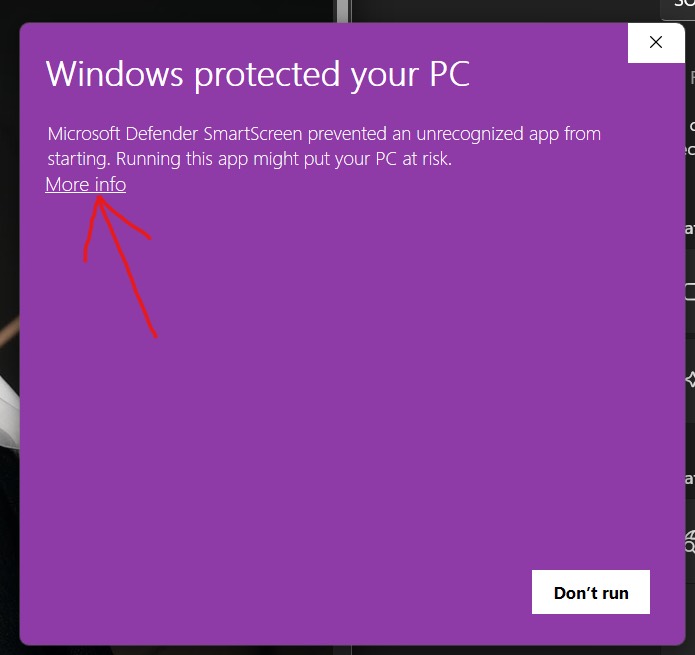
Click “More info”
If “Windows protected your PC” appears, select More info. If there’s no warning, continue to setup.
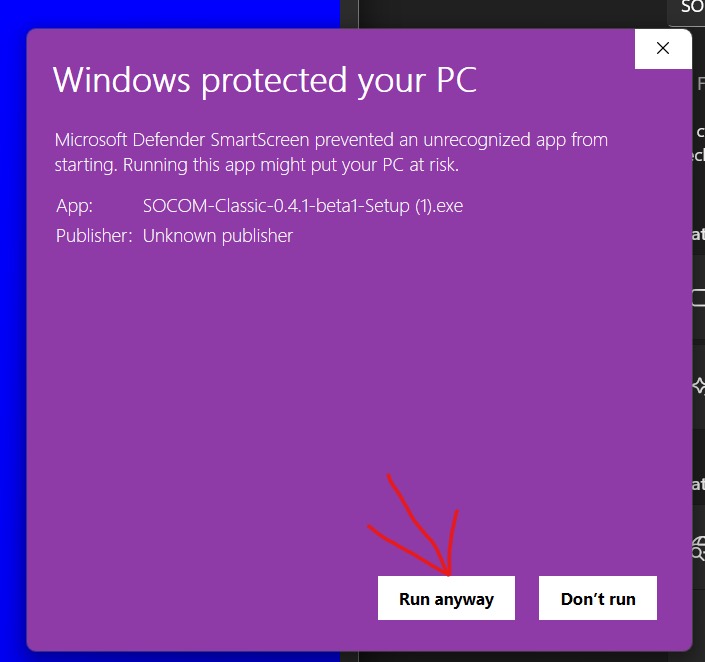
Click “Run anyway”
Check that the app is the SOCOM Classic Setup you downloaded, then select Run anyway.
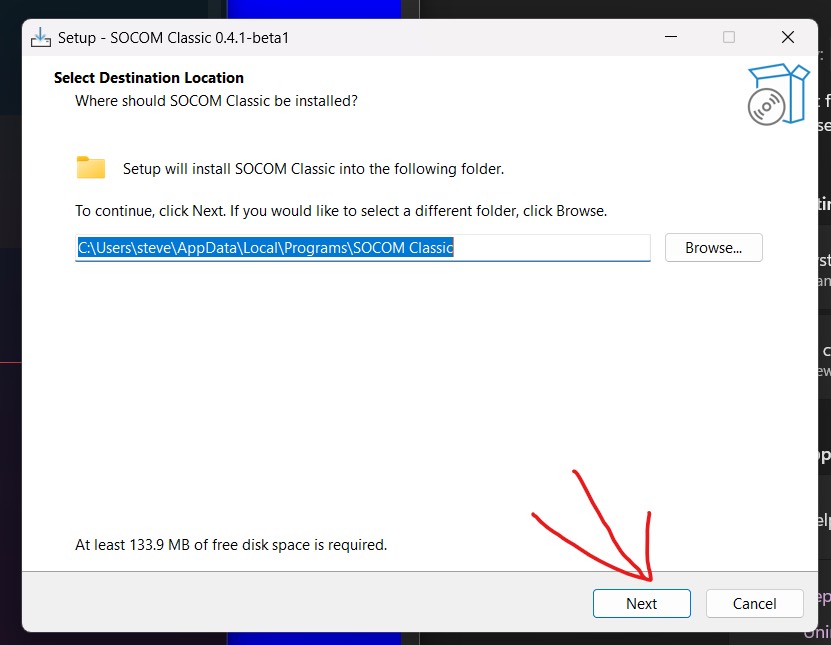
Finish launcher setup
Keep the suggested folder or choose your own. Click Next, follow the setup prompts, then open SOCOM Classic Launcher.
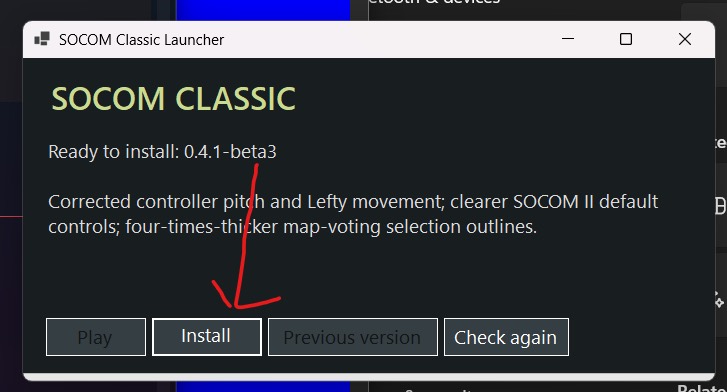
Install or update the game
In the launcher, click Install for your first download, or Update if you already have the game. Let it finish downloading the latest version. One update brings you current, even if you skipped earlier releases.
Click “Play”
Once installation or updating finishes, click Play. For future updates, open the same launcher and click Update when offered.
Don’t see “Run anyway”?
Windows may be showing a different protection message, or your device may have restrictions such as Smart App Control or an organization’s policy. Check the exact message and ask for installation help in the SOCOM Classic community; on a managed PC, contact your administrator. You don’t need Developer Mode for the launcher. Avoid turning off antivirus or SmartScreen globally.